

FAQ/Troubleshooting
Why can’t I see the Face Mapping menu and toolbars?
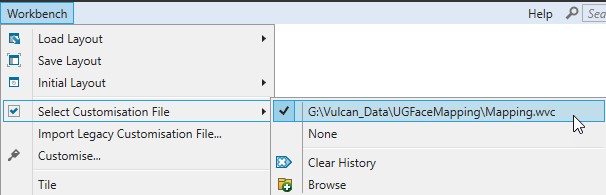
Usually the reason the Face Mapping menu and toolbars aren’t visisble is because the correct Customisation file hasn’t been selected, or has been set incorrectly.
To regenerate a new Customisation file for the currently open Vulcan project directory, simply run the ‘CreateCustomisationFile.wfd’ Workflow in the project directory and follow the instructions.
Alternatively, to select the right Customisation file, navigate to Workbench > Select Customisation File and either select or Browse and select the provided ‘Mapping.wvc’ file.
Why does my face have lots of white lines all over it and look like this?
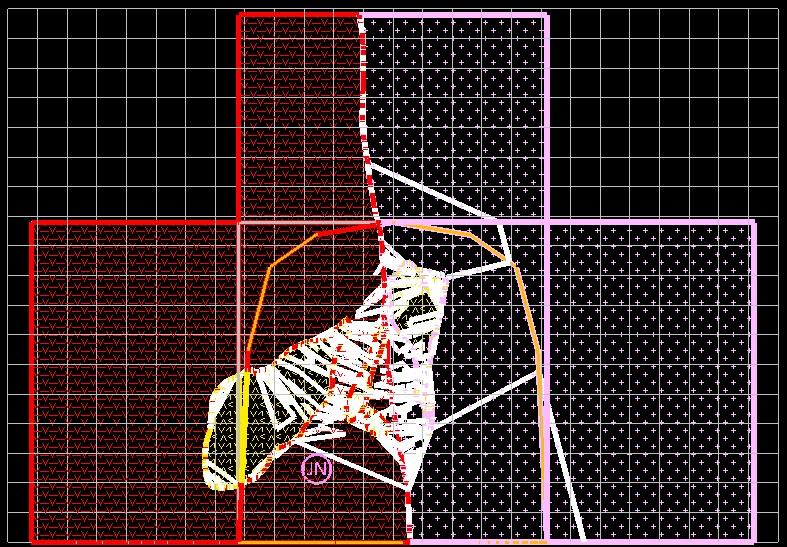
This is caused by the ‘Highlight Intersections’ option being enabled in the ‘Slice’ toolbar.

This can be recitifed by disabling the ‘Highlight Intersections’ option in the ‘Slice’ toolbar.

How do I stop the Vulcan and Vulcan Console log windows from popping up and getting in the way?
Firstly, toggle the ‘Show/Hide Logs’ option at the top of the Workbench so the log windows are visible.
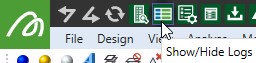
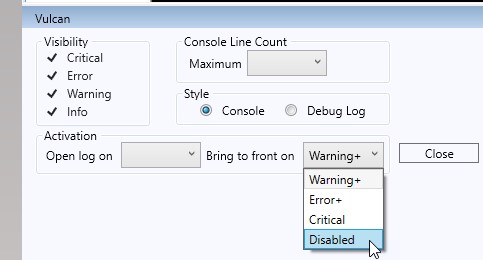
Find and select ‘Filtering, Style and Size Options’ (cog icon) for each of the log windows:
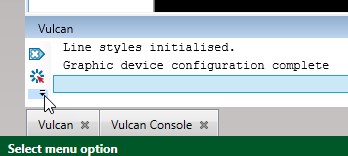
Scroll to the bottom of the settings in the log window and select ‘Disabled’ from the ‘Bring to front on’ drop-down list and then select ‘Close’. Repeat for both log windows.
What does this message mean when I try to run Station Section?
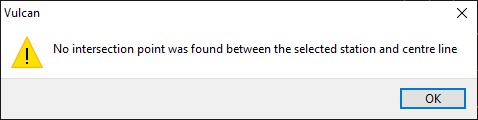
When calculating the position of the face down the drive, relative to the survey station, StationSection is using a trigonometric calculation, which can’t be calculated unless the centre line extends past the survey station.
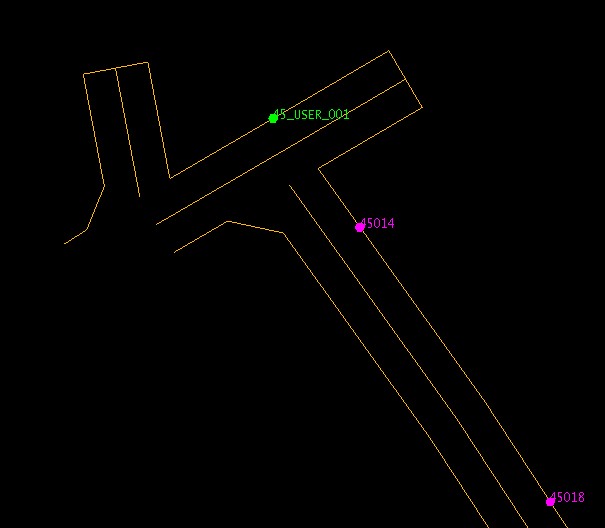
For example, in the image below, the above error message would be produced if the ‘45_USER_001’ survey station were selected with the centreline towards the south, as the centre line doesn’t extend past the survey station.
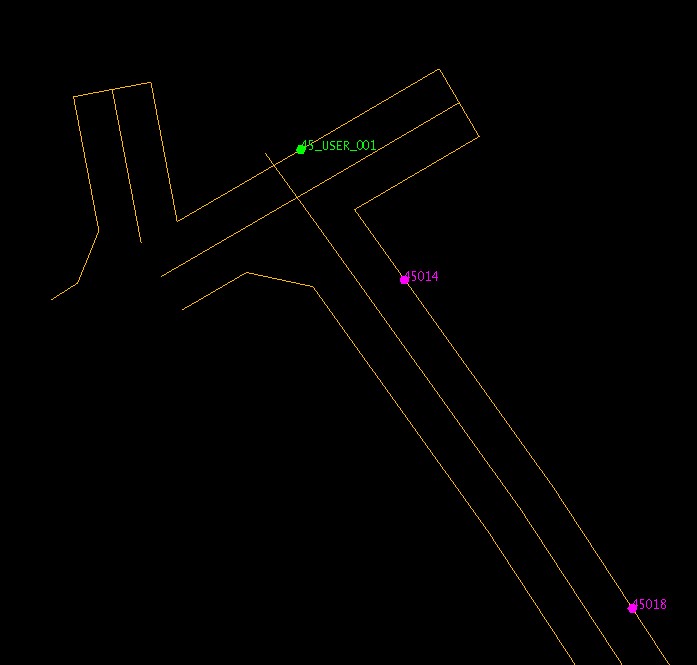
This can be resolved by extending the centre line using Design > Relimit > By Distance, like in the image below.
Why can’t I see any survey stations when using ‘Load Drive Layer’?
If you’re using the functionality to select survey stations that have object names that start with the level name then the only reason survey stations would not load would be that there aren’t any survey stations in the Survey_Stations or User_Survey_Stations layers that start with the value entered into the ‘Level’ inputbox in the Load Drive Layer panel.
If you’re using the ‘Load by proximity’ option to select survey stations then the reasons survey stations aren’t appearing would be that no survey stations in the Survey_Stations or User_Survey_Stations layers fall within the buffer parameter in the Load Drive Layer settings. In this instance try increasing the buffer distances.
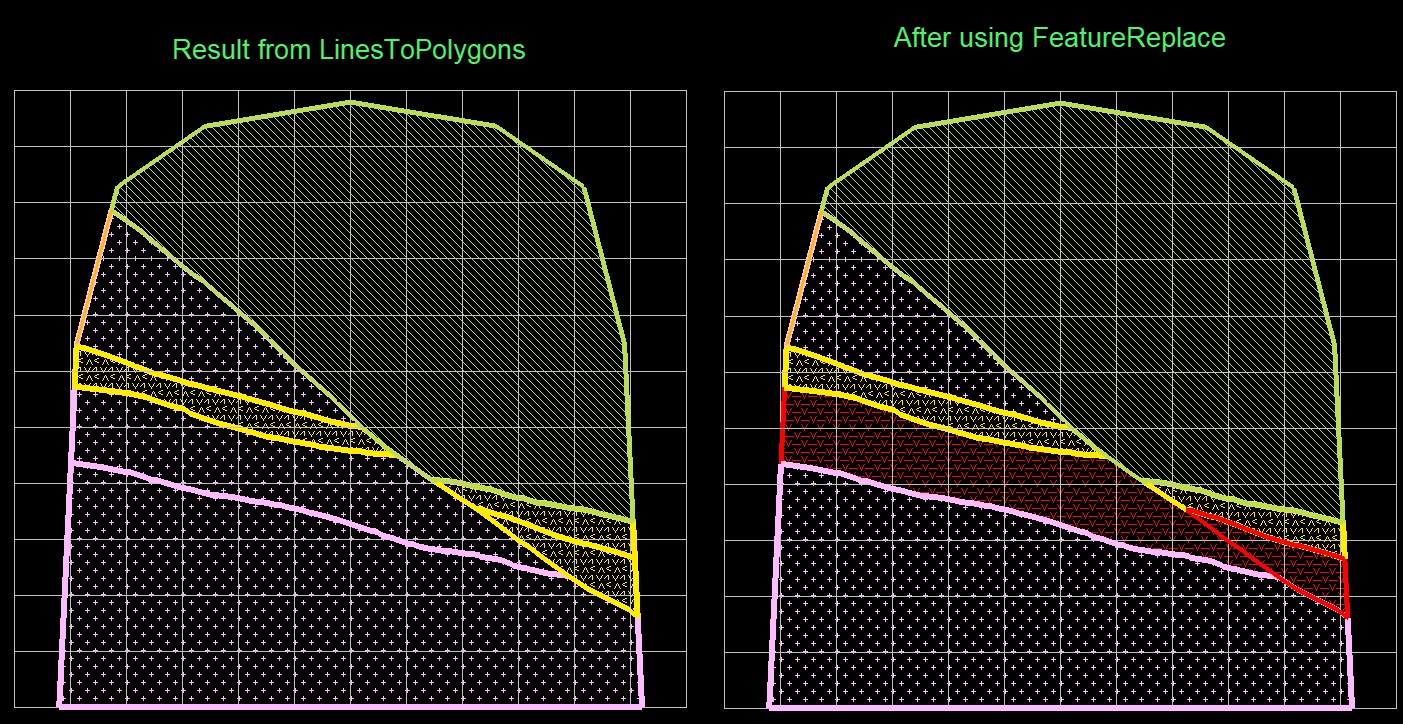
How do I map a fault and associated offsets in my face?
Easy! Just treat the fault like any other lithology when using Feature Lines and be sure to digitise separate feature lines that cross over the fault line.
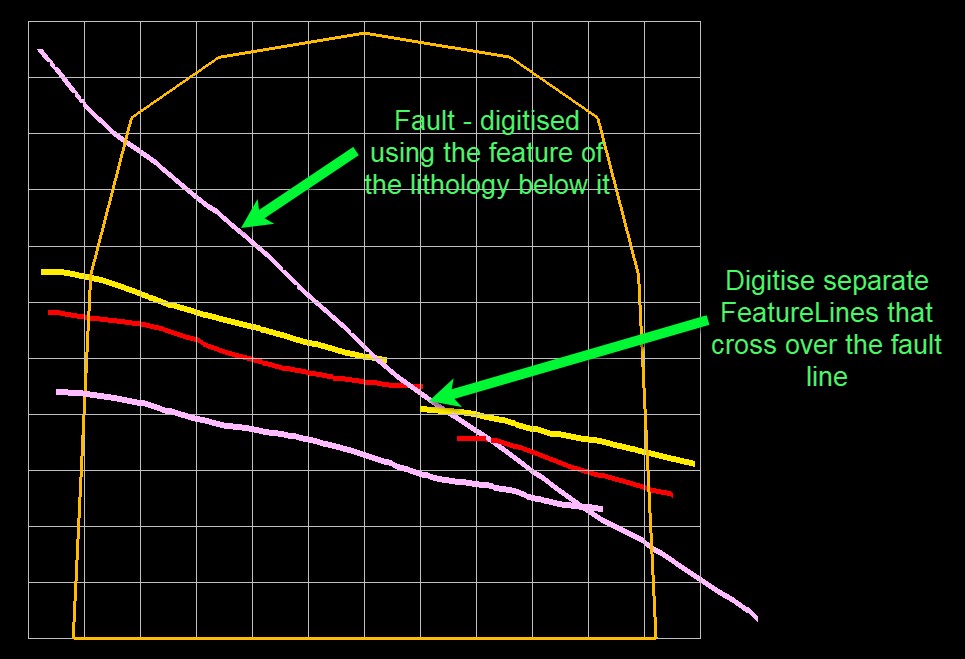
Then after running Lines To Polygons, simply use Feature Replace to adjust any features as required.
How do I load my face sample lines back out once they’ve been synced to the SQL database?
You’ll need to create an ODBC (DSN) connection that links to the SQL database (see Appendix A) and then create a dsf (design template) file in ISIS that tells Vulcan what fields in the SQL database relate to the desired output drillhole database. An example dsf file should have been provided from Maptek, but for your knowledge the dsf setup can be broke down below.
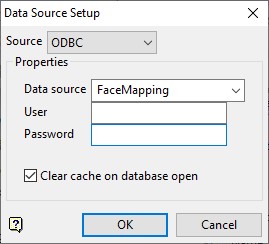
Firstly, the ODBC database source needs to be defined using the ‘Configure’ panel:

Next, each of the fields in the COLLAR, SURVEY, GEOLOGY and ASSAY tables need to be linked firstly to the correct table in the SQL database (using the ‘Configure’ panel for Source in the ‘Table Properties’ section) and the correct sort columns defined.
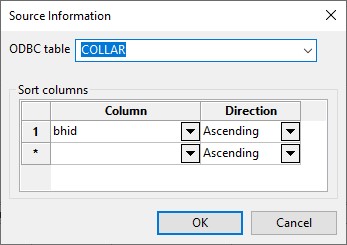
Then each field in the COLLAR table needs to be linked to the correct field in the SQL database (using the ‘Source’ cell in each row):
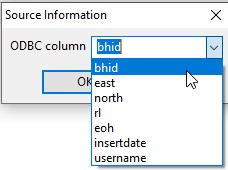
The above process can then be followed for each of the remaining tables:
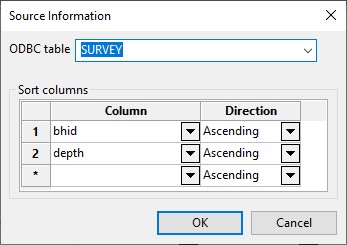
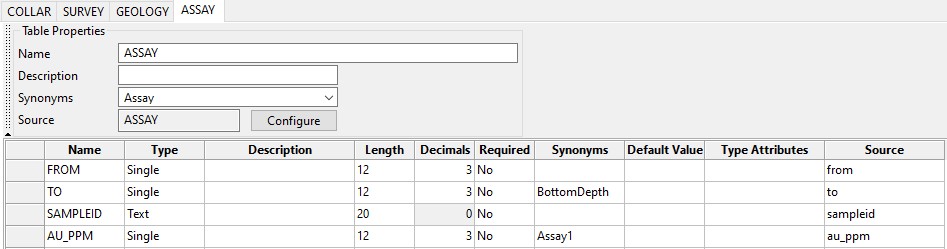
Once all fields have been defined as required use File > Save to save the dsf file. This can then be used to load drilles using Geology > Drilling > Load Drillholes.
Why isn’t ‘this’ tool working?
If any of the tools aren’t working as expected, the easiest way to trouble-shoot is to look for any error messages printed to either the Vulcan Console or Vulcan – Python Script log windows.
If the error message doesn’t provide enough information to resolve the issue, please copy the text from the log window and provide the error message when contacting Maptek for support.
